Best Backup Solutions for Small Businesses
Best Small Business Backup Solutions
Losing business data can be expensive, disruptive, and sometimes impossible to recover from.
A failed laptop, ransomware attack, accidental deletion, damaged drive, stolen device, or cloud-account mistake can remove important files with little warning. Small businesses are especially vulnerable because they may not have dedicated IT staff or formal disaster-recovery systems.
A good backup system gives your business another copy of important information so that files can be restored when something goes wrong.
In this guide to the best small business backup solutions, we compare several practical options based on storage, ease of use, recovery features, device support, centralized management, cloud protection, and suitability for smaller teams.
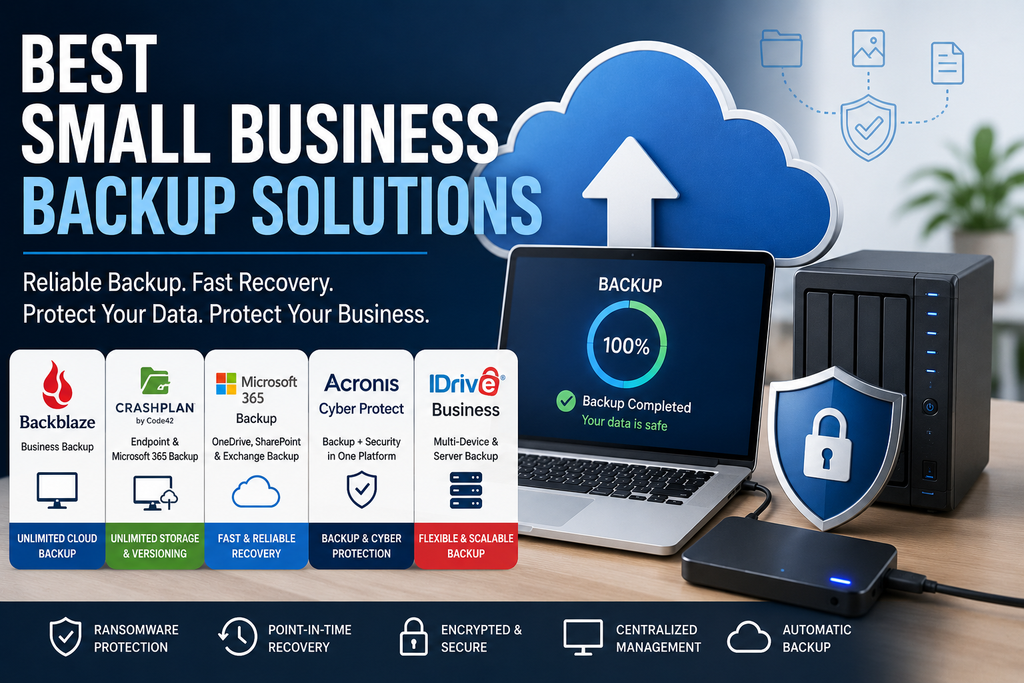
Quick Comparison
| Backup Solution | Best For | Starting Pricing | Main Strength |
|---|---|---|---|
| Backblaze Business Backup | Small businesses wanting simple computer backup | $99/computer/year | Unlimited cloud storage |
| CrashPlan | Businesses wanting unlimited endpoint backup and versioning | $8/user/month | Unlimited storage and version history |
| Microsoft 365 Backup | Businesses protecting Microsoft 365 data | Usage-based / Microsoft ecosystem | Fast recovery for Microsoft 365 workloads |
| Acronis Cyber Protect | Businesses wanting backup plus cybersecurity | Varies by plan/provider | Backup and security in one platform |
| IDrive Business | Businesses backing up multiple device types | Varies by storage plan | Flexible multi-device backup |
Pricing and product features can change. Always confirm current details directly with the provider before purchasing.
Why Small Businesses Need Backups
Many businesses assume that files stored on a laptop or in a cloud application are automatically safe.
That is not always the case.
A backup protects your business from situations such as:
- Hardware failure
- Accidental file deletion
- Ransomware
- Stolen or lost devices
- Employee mistakes
- Corrupted files
- Software problems
- Cloud-account incidents
- Natural disasters
- Unexpected system failures
Backups are particularly important for financial records, customer information, contracts, project files, website data, employee documents, and other information that would be difficult to recreate.
1. Backblaze Business Backup
Best for simple, unlimited computer backup
Backblaze Business Backup is designed for companies that want straightforward cloud backup for employee computers.
It supports Mac and Windows devices and automatically backs up files to the cloud.
One of its biggest advantages is simplicity.
Pricing
Backblaze currently charges $99 per computer per year for Business Backup.
The plan includes:
- Unlimited cloud storage
- Automatic backup
- Centralized user management
- Free restores
- No file-size limits
- Business administration tools
For businesses with predictable numbers of computers, the flat per-device pricing makes budgeting relatively simple. Backblaze
Ease of Use
Backblaze is designed to work largely in the background after installation.
That makes it useful for small businesses without dedicated IT staff.
Employees do not need to manually select files every day or remember to start a backup.
Centralized Management
Business administrators can organize users into groups and manage backup settings from one account.
This becomes useful when several employees need protection.
What We Like
- Unlimited cloud storage
- Simple pricing
- Automatic backup
- Easy deployment
- Centralized administration
- Mac and Windows support
- Free restores
- Suitable for non-technical teams
Potential Drawbacks
- Pricing is per computer rather than per employee
- Primarily focused on endpoint backup
- Businesses with complex server or cloud-workload requirements may need a broader platform
- Mobile-device backup is not its main focus
Who Should Consider It?
Backblaze is one of the strongest options for small businesses that mainly need reliable backup for employee laptops and desktops.
If simplicity is more important than advanced infrastructure features, it is particularly attractive.
2. CrashPlan
Best for unlimited endpoint backup and versioning
CrashPlan focuses on business backup for computers and Microsoft 365 environments.
Its endpoint plan supports Windows, Mac, and Linux systems and includes unlimited cloud storage and unlimited versioning.
Pricing
CrashPlan currently lists endpoint backup at:
- $8 per user per month
- $88 per user per year
- $158 per user for two years
Its Microsoft 365 backup plan starts at $4 per user per month and includes protection for Exchange Online, SharePoint, and OneDrive. CrashPlan
Unlimited Versioning
One of CrashPlan’s major strengths is unlimited version history.
That can be especially useful when a file is accidentally overwritten or encrypted by ransomware.
Instead of restoring only the latest copy, the business may be able to recover an earlier version.
Automatic Backup
CrashPlan automatically backs up data in the background.
Employees can also restore their own files, which can reduce the amount of administrative help required for simple recovery tasks.
Microsoft 365 Protection
CrashPlan also offers backup for:
- Exchange Online
- SharePoint
- OneDrive
This can be useful for businesses that want endpoint backup and Microsoft 365 data protection from the same provider.
What We Like
- Unlimited endpoint cloud storage
- Unlimited versioning
- Windows, Mac, and Linux support
- Automatic backups
- User self-service restore
- Microsoft 365 backup option
- 14-day trial
- Straightforward small-business pricing
Potential Drawbacks
- Per-user pricing can become expensive as the team grows
- Microsoft 365 protection is a separate product
- Businesses with highly complex server environments may need a more advanced platform
Who Should Consider It?
CrashPlan is particularly strong for businesses that want long version history and unlimited endpoint storage.
It is also useful for teams that have Windows, Mac, and Linux devices.
3. Microsoft 365 Backup
Best for businesses relying heavily on Microsoft 365
Businesses that rely on Microsoft 365 should think separately about protecting cloud data.
Microsoft 365 Backup is designed to provide backup and recovery for Microsoft 365 workloads such as:
- OneDrive
- SharePoint
- Exchange
This is different from backing up employee laptops.
Why Cloud Data Still Needs Protection
Cloud services are resilient, but users can still delete files, overwrite information, remove email, or suffer account-related incidents.
A separate backup can give administrators more recovery options.
Recovery
Microsoft 365 Backup focuses on fast recovery and restore capabilities inside the Microsoft ecosystem.
For organizations already using Microsoft 365, this can simplify administration because backup remains closely integrated with Microsoft’s environment.
Pricing
Microsoft uses capacity-based or consumption-based pricing for Microsoft 365 Backup rather than a simple fixed per-user package in all situations.
Businesses should check Microsoft’s current pricing based on the amount of data they need to protect. Microsoft Adoption
What We Like
- Native Microsoft 365 integration
- Protects OneDrive
- Protects SharePoint
- Protects Exchange
- Designed for rapid recovery
- Useful for Microsoft-heavy businesses
- Centralized administration
Potential Drawbacks
- Does not replace endpoint backup
- Pricing depends on storage and usage
- Mainly relevant to Microsoft 365 environments
- Businesses may still need a separate computer-backup solution
Who Should Consider It?
Microsoft 365 Backup makes sense for businesses that store large amounts of important data in Microsoft 365.
It should usually be considered alongside endpoint backup rather than as a replacement for it.
4. Acronis Cyber Protect
Best for businesses wanting backup and security together
Acronis takes a broader approach than traditional backup services.
Its Cyber Protect platform combines backup with cybersecurity and device-management features.
Depending on the plan and deployment, businesses may be able to protect:
- Workstations
- Servers
- Virtual machines
- Cloud workloads
- Microsoft 365
- Business applications
Backup Plus Cybersecurity
One of Acronis’ main advantages is combining data protection with security features.
That can reduce the need to manage completely separate tools for backup, malware protection, vulnerability management, and device security.
Ransomware Protection
Acronis includes anti-ransomware and cyber-protection capabilities designed to help prevent malicious software from damaging backup data.
This is important because ransomware increasingly targets backups as well as active files.
Flexible Deployment
Acronis is commonly offered through IT providers and managed service providers as well as direct business channels.
This can be useful for small businesses that already work with an external IT company.
What We Like
- Backup and cybersecurity in one platform
- Endpoint and server protection
- Cloud workload support
- Ransomware-focused protection
- Centralized administration
- Good fit for managed IT environments
- Scalable for growing companies
Potential Drawbacks
- More complex than simple cloud backup
- Pricing can vary by provider, storage, and workload
- Very small businesses may not need the full feature set
- Administration may require more technical knowledge
Who Should Consider It?
Acronis is a strong option for growing businesses that want backup to be part of a broader cybersecurity strategy.
It may be especially suitable for companies working with an IT consultant or managed service provider.
5. IDrive Business
Best for businesses backing up multiple types of devices
IDrive Business offers cloud backup for a range of devices and workloads.
Depending on the plan, businesses can protect computers, servers, mobile devices, and other data sources under one account.
Multi-Device Backup
One of IDrive’s main advantages is that storage is generally allocated across the account rather than charging separately for every individual device.
That can be useful for businesses with employees who use several devices.
Backup Features
IDrive business plans can include capabilities such as:
- Continuous data protection
- Scheduled backup
- File versioning
- Server backup
- Cloud backup
- Centralized administration
- Remote management
Exact features depend on the plan selected.
What We Like
- Supports multiple device types
- Flexible storage plans
- Centralized administration
- File versioning
- Server options
- Suitable for businesses with mixed devices
Potential Drawbacks
- Storage is limited by the selected plan
- Pricing becomes more complicated as storage requirements increase
- Businesses wanting unlimited endpoint backup may prefer Backblaze or CrashPlan
- Some advanced workload protection requires careful plan selection
Who Should Consider It?
IDrive can be a good fit for businesses that need to protect several kinds of devices rather than only employee computers.
It is worth considering when flexibility is more important than unlimited storage.
Which Small Business Backup Solution Is Best?
There is no single backup product that will suit every business.
Choose Backblaze If
Backblaze may be the best fit if:
- You mainly need computer backup
- You want unlimited storage
- You prefer predictable pricing
- Your team uses Windows or Mac
- You want minimal administration
Choose CrashPlan If
CrashPlan may be the best fit if:
- Unlimited versioning matters
- You need Windows, Mac, and Linux support
- You want unlimited endpoint storage
- Employee self-service restore is useful
- You may also need Microsoft 365 backup
Choose Microsoft 365 Backup If
Microsoft 365 Backup may be the best fit if:
- Your company relies heavily on Microsoft 365
- OneDrive contains important business files
- SharePoint is central to your workflow
- Business email is hosted in Exchange Online
- Fast cloud-data recovery is important
Choose Acronis If
Acronis may be the best fit if:
- You want backup and cybersecurity together
- Your company has servers or virtual machines
- You need more advanced protection
- You work with an IT provider
- Your backup requirements are likely to grow
Choose IDrive If
IDrive may be the best fit if:
- You use many types of devices
- You want one account for several backup sources
- You need server options
- Flexible storage allocation matters
The 3-2-1 Backup Rule
A useful backup strategy is often described as the 3-2-1 rule.
It means keeping:
- 3 copies of important data
- On 2 different types of storage
- With 1 copy stored off-site
For example, a business might keep:
- The working copy on a computer
- A backup on a local storage device
- Another encrypted backup in the cloud
The exact strategy can vary, but the main idea is not to depend on a single copy or a single storage location.
Cloud Backup vs Local Backup
Both approaches have advantages.
Cloud Backup
Cloud backup stores a copy of your data away from your physical office.
Advantages include:
- Protection from theft or fire
- Remote access to backups
- Automatic operation
- Off-site storage
- Easier management for remote workers
Local Backup
Local backup may use:
- External hard drives
- Network-attached storage
- Backup servers
Advantages can include:
- Faster recovery of large amounts of data
- No internet dependency for local restore
- Direct control over storage
For many businesses, using both provides stronger protection than relying on either method alone.
Backup Is Not the Same as File Sync
This distinction is important.
Services such as OneDrive, Google Drive, Dropbox, and other cloud-storage platforms synchronize files between devices.
Synchronization is useful, but it is not always a complete backup strategy.
If a file is deleted, corrupted, or changed, those changes may also synchronize.
A dedicated backup system is designed specifically around recovery and historical copies.
Small businesses should understand what recovery features their cloud-storage service already provides and whether separate backup is needed.
How Often Should a Small Business Back Up Data?
The answer depends on how much data the business can afford to lose.
If a company backs up once per week and a failure occurs six days later, almost a week of work could disappear.
For important business data, backups should often run automatically and frequently.
Many cloud-backup tools operate continuously or throughout the day.
Consider how much work your business could realistically recreate.
For critical systems, the acceptable data-loss window may be hours or even minutes rather than days.
What Should You Back Up?
Prioritize data that would be difficult, expensive, or impossible to recreate.
This may include:
- Customer records
- Accounting information
- Contracts
- Business documents
- Project files
- Website files
- Databases
- Employee records
- Cloud-storage data
- Configuration files
- Important application data
Businesses should periodically review what is being backed up because new applications and storage locations may be introduced over time.
Protect Backups From Ransomware
A backup is particularly valuable after a ransomware attack, but only if the attackers cannot destroy the backup too.
Businesses should consider protections such as:
- Separate backup credentials
- Multi-factor authentication
- Restricted administrative access
- Immutable or protected backups
- Offline copies where appropriate
- Backup version history
- Monitoring backup failures
- Regular restore testing
Never assume that simply having a backup application installed means the data is safe.
Test Your Backups
A backup that cannot be restored is not useful.
Small businesses should test recovery periodically.
Choose a few files and verify that you can restore them successfully.
For important systems, consider testing larger recovery scenarios as well.
Backup testing can reveal problems such as:
- Missing folders
- Incorrect permissions
- Failed backup jobs
- Corrupted archives
- Forgotten encryption passwords
- Incomplete cloud protection
Testing is one of the simplest ways to confirm that your backup strategy actually works.
How to Choose a Backup Solution
When comparing small business backup solutions, focus on practical requirements rather than the longest feature list.
Consider:
- Number of computers
- Number of employees
- Storage requirements
- Servers
- Microsoft 365 or Google Workspace usage
- Operating systems
- Recovery speed
- Version history
- Centralized administration
- Security controls
- Ransomware protection
- Pricing as the business grows
The right product should protect the data you actually use without becoming unnecessarily difficult to manage.
Common Backup Mistakes Small Businesses Should Avoid
Keeping Only One Backup
A single backup can fail or be damaged.
Important business data should have more than one recovery option.
Leaving Backup Drives Connected All the Time
A permanently connected local backup may be vulnerable to ransomware.
Consider additional protected or off-site copies.
Forgetting Cloud Applications
Business data may live in Microsoft 365, Google Workspace, CRM systems, and other cloud services.
Make sure you understand what those providers protect and what remains your responsibility.
Never Testing Recovery
Do not wait for an emergency to discover that your backup is incomplete.
Giving Too Many People Administrative Access
Backup systems can contain almost all of a company’s important information.
Administrative access should be limited and protected with MFA.
Our Recommendation
For straightforward computer backup, Backblaze Business Backup is one of the easiest options because it combines unlimited storage with predictable per-computer pricing.
CrashPlan is particularly strong for businesses that value unlimited versioning and need Windows, Mac, or Linux support.
Businesses heavily invested in Microsoft 365 should consider Microsoft 365 Backup for cloud data, usually alongside endpoint backup.
Acronis Cyber Protect makes more sense for companies that want backup combined with a broader cybersecurity platform.
IDrive Business is worth considering when a company needs to protect a wider mix of devices and workloads under one account.
The best solution depends on where your data is stored and how quickly you need to recover it.
Build a Stronger Backup Strategy
Choosing reliable small business backup solutions is only one part of protecting company data.
Backups should be combined with endpoint protection, multi-factor authentication, strong password management, software updates, limited administrator access, and employee security awareness.
For more practical security advice, visit our Cybersecurity section and our Small Business Technology Guides.
You can also read our Best Small Business Antivirus Software, Best Small Business MFA Tools, and 10 Cybersecurity Practices Every Small Business Should Follow guides.
Backup products, pricing, storage allowances, and features can change. Confirm current information directly with each provider before purchasing or deploying a service.
